Documentation & Integration Guide for Unreal Engine
This comprehensive guide is designed to help you integrate Ultimate Phone System into your own Unreal Engine project, step by step. Each section walks you through the process with clear, detailed instructions.
The guide also includes additional tutorials to help you customize your phone and tailor it to your needs. With dedicated sections for each step, you can follow along easily and refer back at any time.
# Tutorial — Getting Started
This tutorial will show you step by step how to implement Ultimate Phone System in your project. As an example, I chose to integrate it into the ALS (Advanced Locomotion System) plugin project — but the same steps apply to any character setup.
1 Add the Phone Component
Add BPC_Phone to your character class
2 Setup the Scene Capture Component
Add Scene Capture Component 2D and attach to your character mesh
Set FOV to 65
Set Capture Source to Final Color HDR
Assign this component to the Phone Camera variable inside BPC_Phone
3 Custom Skeletal Mesh (skip if using default)
Set your custom skeletal mesh as the target of the Character Mesh variable inside BPC_Phone
4 Add Sockets to Your Skeletal Mesh
Add the following 3 sockets to your character's skeletal mesh. PhoneMeshSocket and PhoneCameraSocket go on the right hand (hand_r), SpeakerSocket goes on the left hand (hand_l):
PhoneCameraSocket — right hand
SocketCopyPasteBuffer
NumSockets=1
IsOnSkeleton=1
Begin Object Class=/Script/Engine.SkeletalMeshSocket Name="SkeletalMeshSocket_6"
SocketName="PhoneCameraSocket"
BoneName="hand_r"
RelativeLocation=(X=-11.380000,Y=8.350000,Z=7.330000)
RelativeRotation=(Pitch=16.630000,Yaw=42.330000,Roll=18.890000)
End Object
PhoneMeshSocket — right hand
SocketCopyPasteBuffer
NumSockets=1
IsOnSkeleton=1
Begin Object Class=/Script/Engine.SkeletalMeshSocket Name="SkeletalMeshSocket_5"
SocketName="PhoneMeshSocket"
BoneName="hand_r"
RelativeLocation=(X=-6.930000,Y=6.170000,Z=-6.900000)
RelativeRotation=(Pitch=13.380000,Yaw=-52.760000,Roll=-29.720000)
End Object
SpeakerSocket — left hand
SocketCopyPasteBuffer
NumSockets=1
IsOnSkeleton=1
Begin Object Class=/Script/Engine.SkeletalMeshSocket Name="SkeletalMeshSocket_5"
SocketName="SpeakerSocket"
BoneName="hand_l"
RelativeLocation=(X=12.719643,Y=-0.419890,Z=-18.410732)
RelativeRotation=(Pitch=-0.000397,Yaw=-36.364219,Roll=-16.638994)
End Object
💡 If you used different socket names, simply update them in the BPC_Phone defaults.
Attach your Scene Capture Component 2D to the PhoneCameraSocket
5 Retarget Phone Animations
Navigate to ABP_Phone at /UMPS/UMPSContent/Blueprints/Animations/ABP_PhoneRight-click → Retarget AnimationsSet your character's skeletal mesh as the Target Skeletal MeshSearch for Phone_ and select all resultsClick Export Animations to /UMPS/UMPSContent/Assets/Animations
✅ Check Overwrite Existing Files → Save all
6 Reassign the Skeleton
Right-click ABP_Phone → Assign Skeleton → select your character's skeleton
7 Link Animation Blueprint
Open your character's Anim Blueprint, add a Linked Anim Graph node just before the Output Pose, set the Instance Class to ABP_Phone and the Tag to Phone
✓ You can now test your project. Press F to toggle the phone.
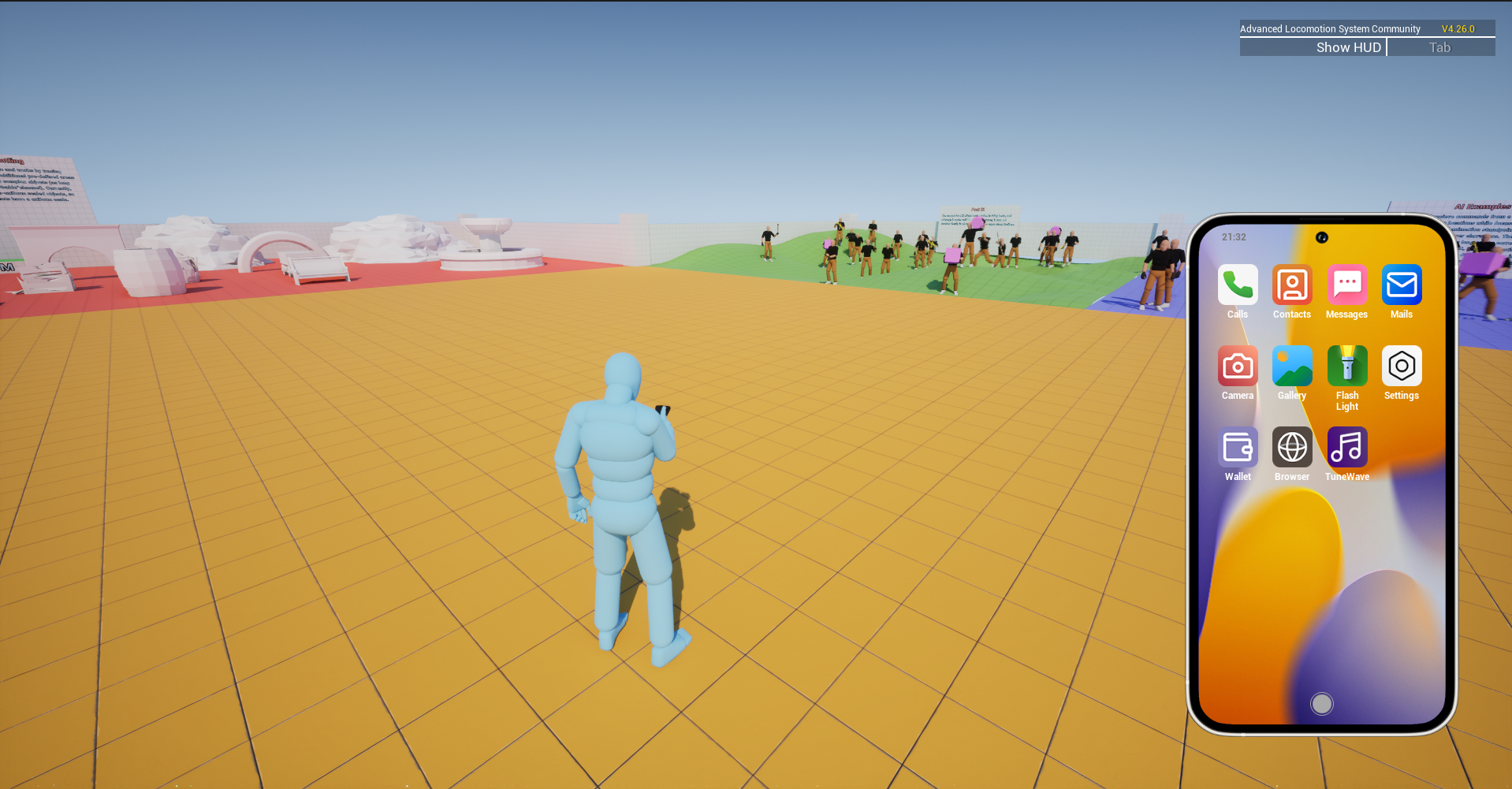
Result — phone working in-game
# Customize Your Phone — Default Settings
You can directly modify settings from the BPC_Phone component. Below is a reference of every property:
⚙ Properties Reference
PhoneMeshSocketName of the socket where the phone mesh sits in the player's hand
PhoneCameraSocketName of the socket for the phone camera
SpeakerSocketUsed to know where the bluetooth speaker will be placed
BackgroundDefault background of the phone
FPVModeEnable to see the phone in first-person view when toggled
Back Camera PosAdjust the camera position when back camera is enabled
RingtoneDefault ringtone
RingtonesArray of ringtones the player can choose in settings
Ringing TimeTime until a call ends if the other player doesn't accept
Silent ModeIf checked, ringtone is replaced by a simple vibration
Notification SoundSound played when receiving a notification
AppsArray of apps visible when opening the phone. Delete ones you don't want or add new ones (see Add Your Own Apps)
Market PlacesEach marketplace is a website with advanced features (items, categories, cart, etc.). See Add Your Own Marketplaces
NPCSAdd NPCs that appear permanently in your contacts. Use Receive NPC Call to trigger calls with custom dialogs
BluetoothRangeRange (in units) before the bluetooth speaker disconnects
Bluetooth Speaker UnlockedSet to true to start with the speaker unlocked (can also be changed via Unlock Bluetooth Speaker function, saved in save system)
Enable SaveSaves all phone data: phone number, purchased items, contacts, etc.
MoneyDefault money in the bank
# Add Your Own Apps
I will show you step by step how to add your own apps by a tutorial of a simple call app.
1 Duplicate the Clone Template
Go to /UMPS/UMPSContent/Blueprints/Widgets/AppsDuplicate W_EasyCloneAppRename it to your desired name, for example W_CallAppExample
2 Design Your App UI
In the designer graph, you can add everything you want inside the AppOverlay. For this example I will add:
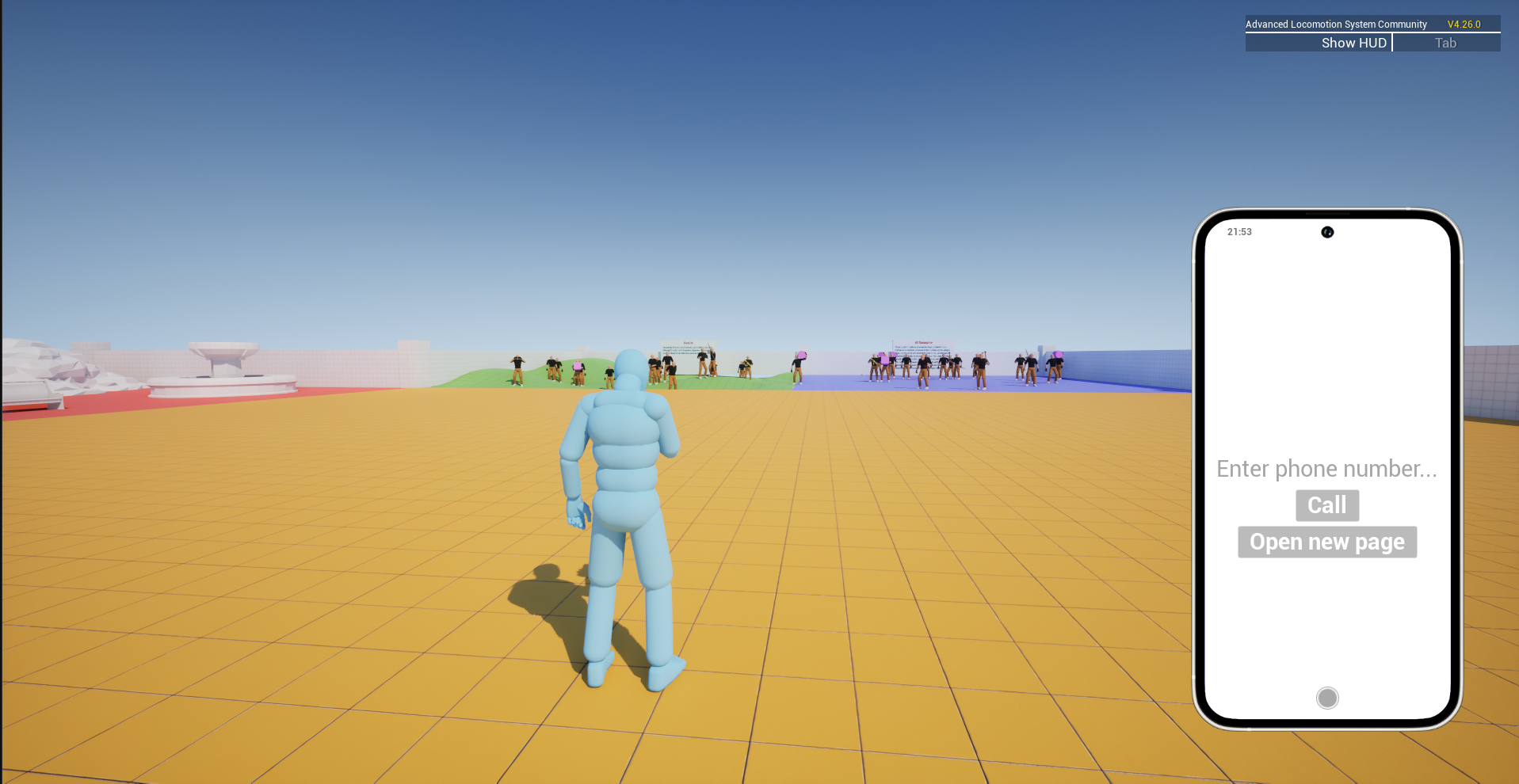
An Editable Text box to enter the phone number and a Button to place the call
In the graph, add an On Click event for the call button. Call the Call function from the phone component on this event, and set the phone number parameter to Get Text from the editable text box.
3 Link the App in the Phone Component
Your app widget is now created. The last step is to link it to an app in the phone:
Go to your Phone Component → Apps array. Add a new entry — name it Call App Example. Set its Icon to the same icon as the existing calling app. Set Widget Class to the widget you just created — W_CallAppExample.
4 Test Your App
To test, you can run as Listen Server or as Client with 2 players:
From one player, copy the phone number of the player you want to call from the Contacts app
Search for the contact You and try to call them
You have your call app ready in just a few minutes! ✅
Result — call app in the phone
5 Add Multiple Pages (Optional)
If you want to add another page to your app, duplicate W_EasyAppPageClone.
I name this page W_CallExampleAppPage.
For example, in our call app I will add a button to show another page.
In the graph, on the button click event, create W_CallExampleAppPage and add it as a child of AppOverlay
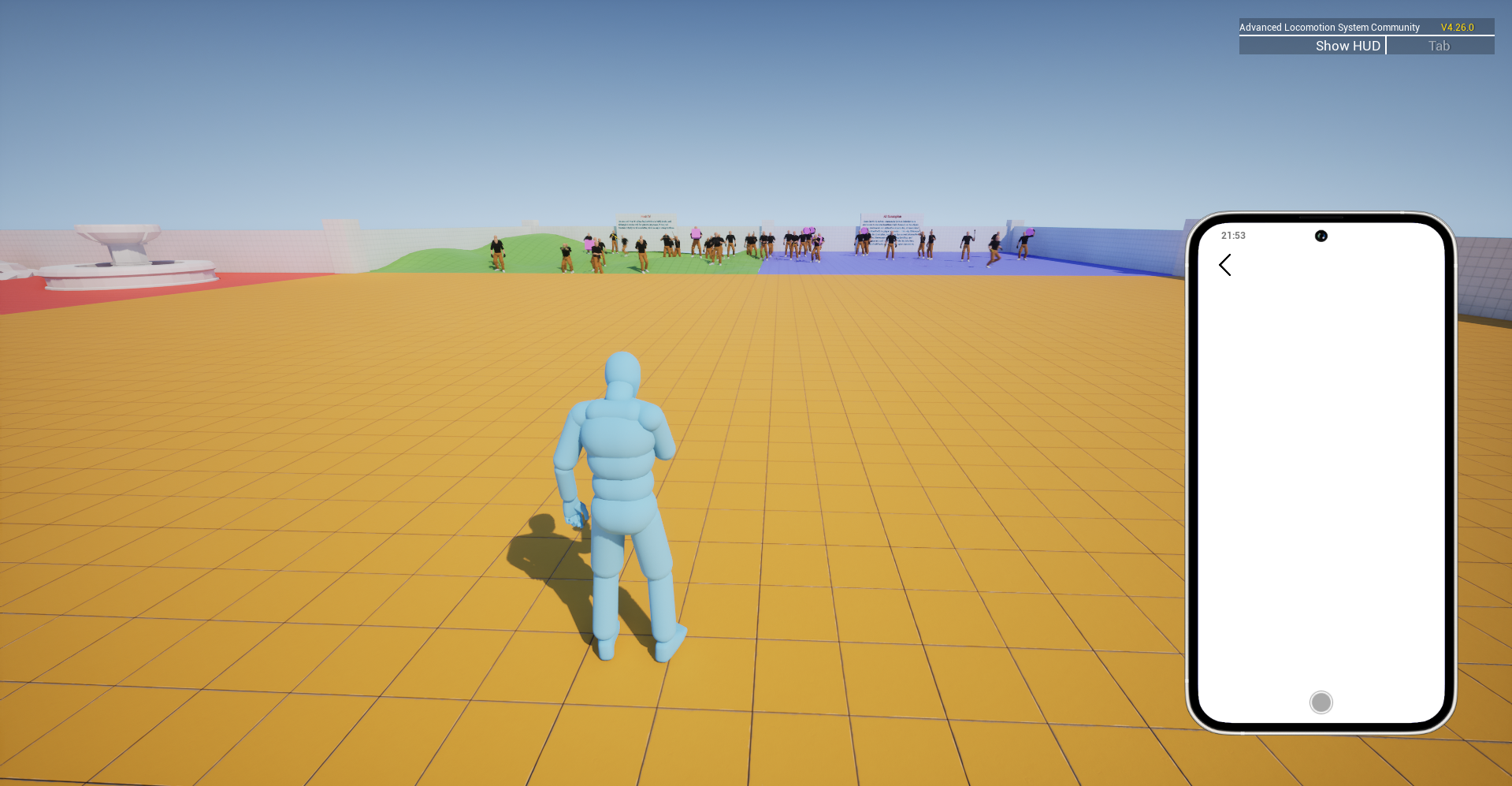
Result — additional page in the app
✓ Now you have all the keys to add and customize your own apps on the phone.
# Create Your Own Websites & Marketplaces
I will show you how to create a simple website that will appear in the browser, and then a full marketplace.
Websites
1 Duplicate the Website Template
Go to /UMPS/UMPSContent/Blueprints/Widgets/Apps/Browser/WebSites. Duplicate W_EasyWebPageClone and rename it, for example W_WebsiteExample.
2 Design Your Website
In the designer you can add whatever you want. Everything should be placed inside the WebPageScrollBoxOverlay.
You also have access to the phone component in the graph to call its events.
3 Register in the Phone Component
Go to your Phone Component → Websites array. Add a new entry with the Name, URL, Icon, and Widget you want.
Test it — open the phone, go to the Browser app and your new website should appear.
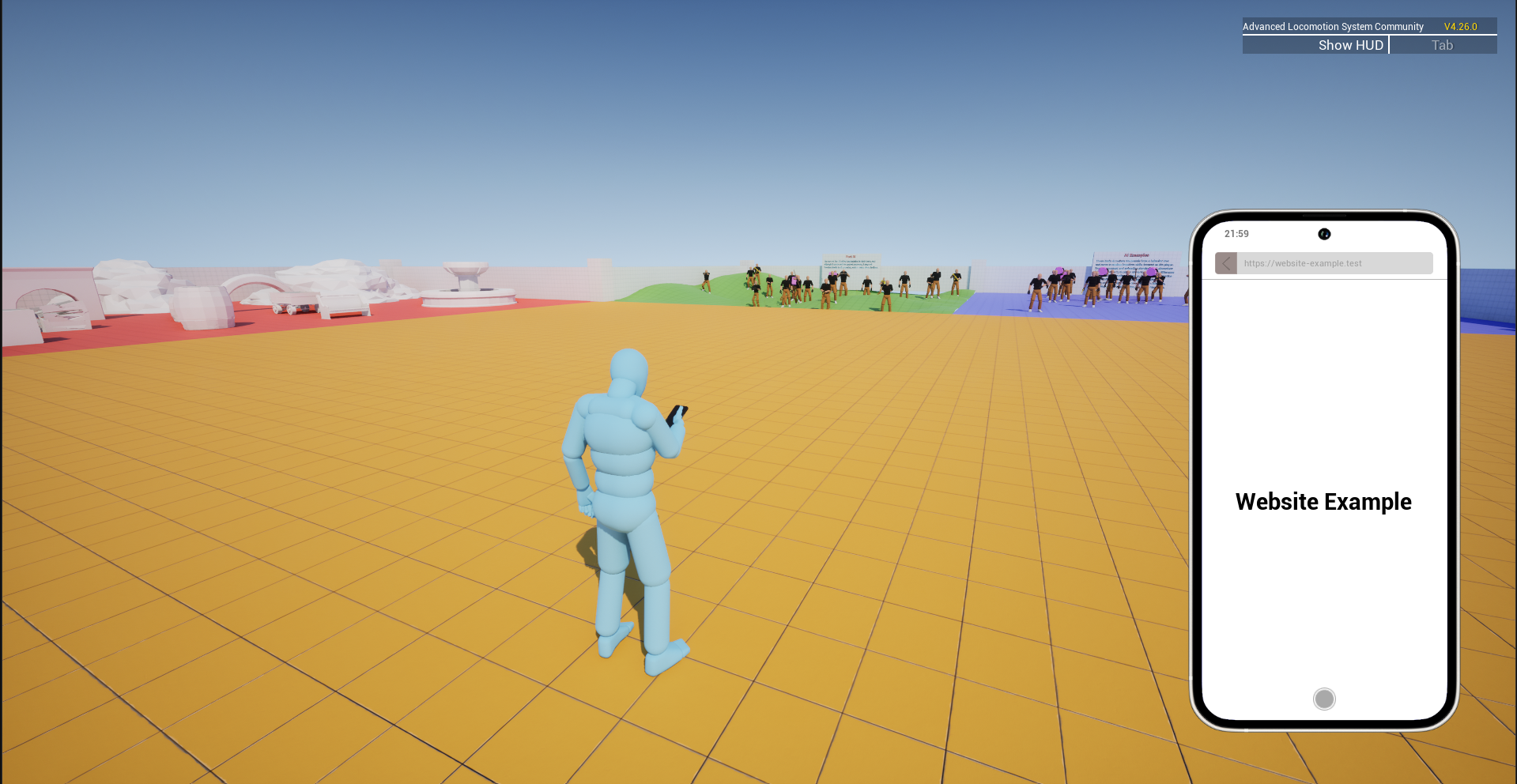
Result — website in the browser app
Marketplaces
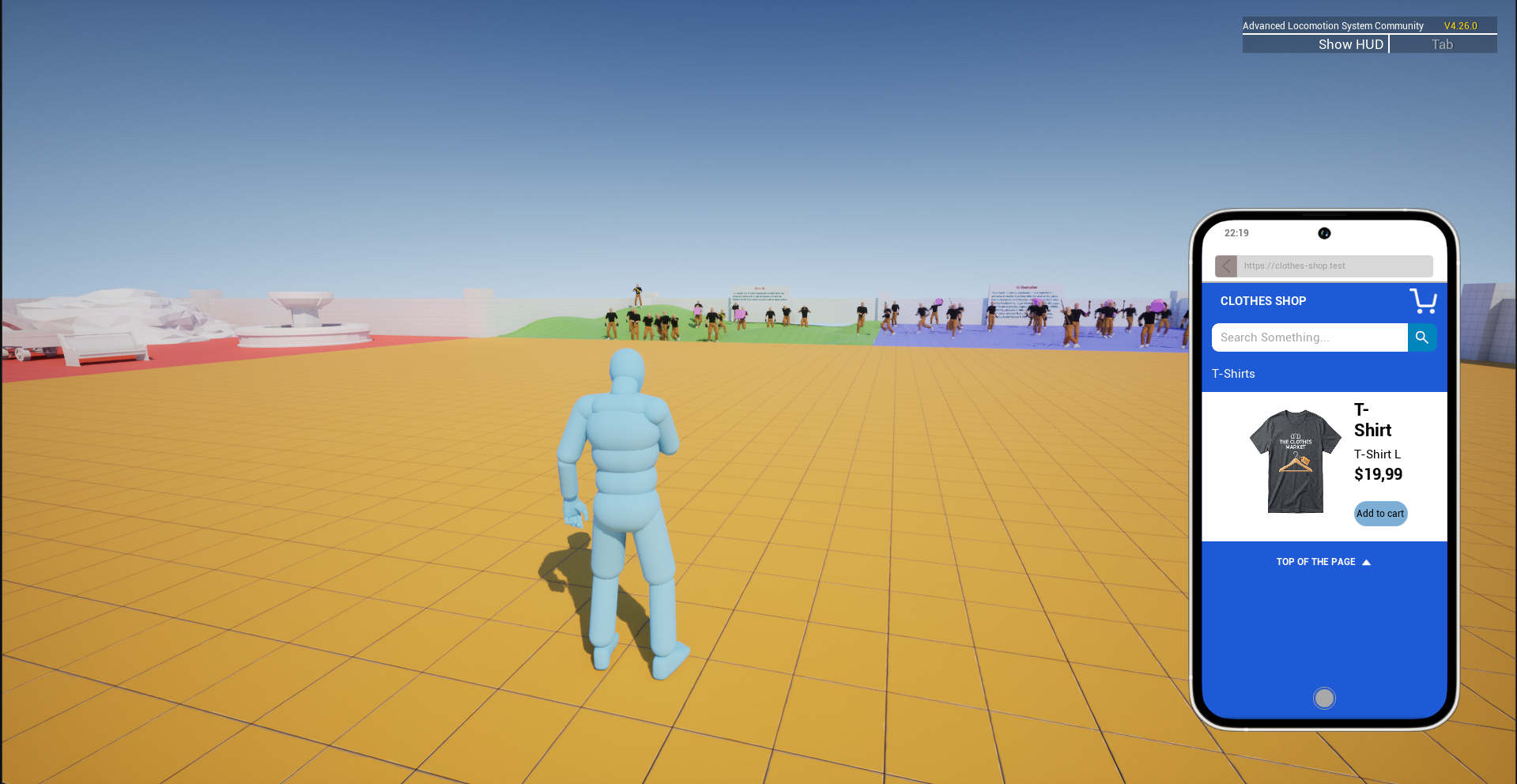
Let's create a marketplace that sells clothes for example.
1 Create the Base Website
A marketplace must first be a website. Add a new entry in your phone component's Websites array: Name: Clothes Shop — URL:https://clothes-shop.test — Icon: Pick any icon.
2 Duplicate the Marketplace Widgets
Go to /UMPS/UMPSContent/Blueprints/Widgets/Apps/Browser/WebSites/MarketPlaces. Duplicate W_EasyMarketPlaceClone and rename it, for example W_ClothesShop. Duplicate W_EasyMarketPlaceItemCategoryClone and rename it, for example W_ClothesShopCategory. Duplicate W_EasyMarketPlaceItemClone and rename it, for example W_ClothesShopItem.
Set the website's Widget to the marketplace widget you just created (W_ClothesShop).
3 Configure the Marketplace Array
Go to the Phone Component → Market Places array and add a new entry: Website URL — must match https://clothes-shop.test. Item Widget — set to W_ClothesShopItem. Category Widget — set to W_ClothesShopCategory. You can add items to your marketplace by adding a new entry in the Items array of that marketplace entry.
4 Marketplace Item Properties Explained
Is Physical — Useful for tracking whether the item is a real 3D object. Class — The actor class of the item. Purchase Once — Whether the item can only be purchased once per player. Type — For better tracking, add types in E_MarketPlaceItemType. After adding all categories, you can also enable or disable the cart system for this marketplace.
5 Customize the Design
If you want a different design, you are free to change the colors and layout of the marketplace widget, item widget, and category widget — just like the default marketplaces (WarStock and Zurek) included in this plugin.
✓ You now have a fully functional marketplace in the browser app.
Result — marketplace in the browser app
# Understand & Add Your Own NPCs
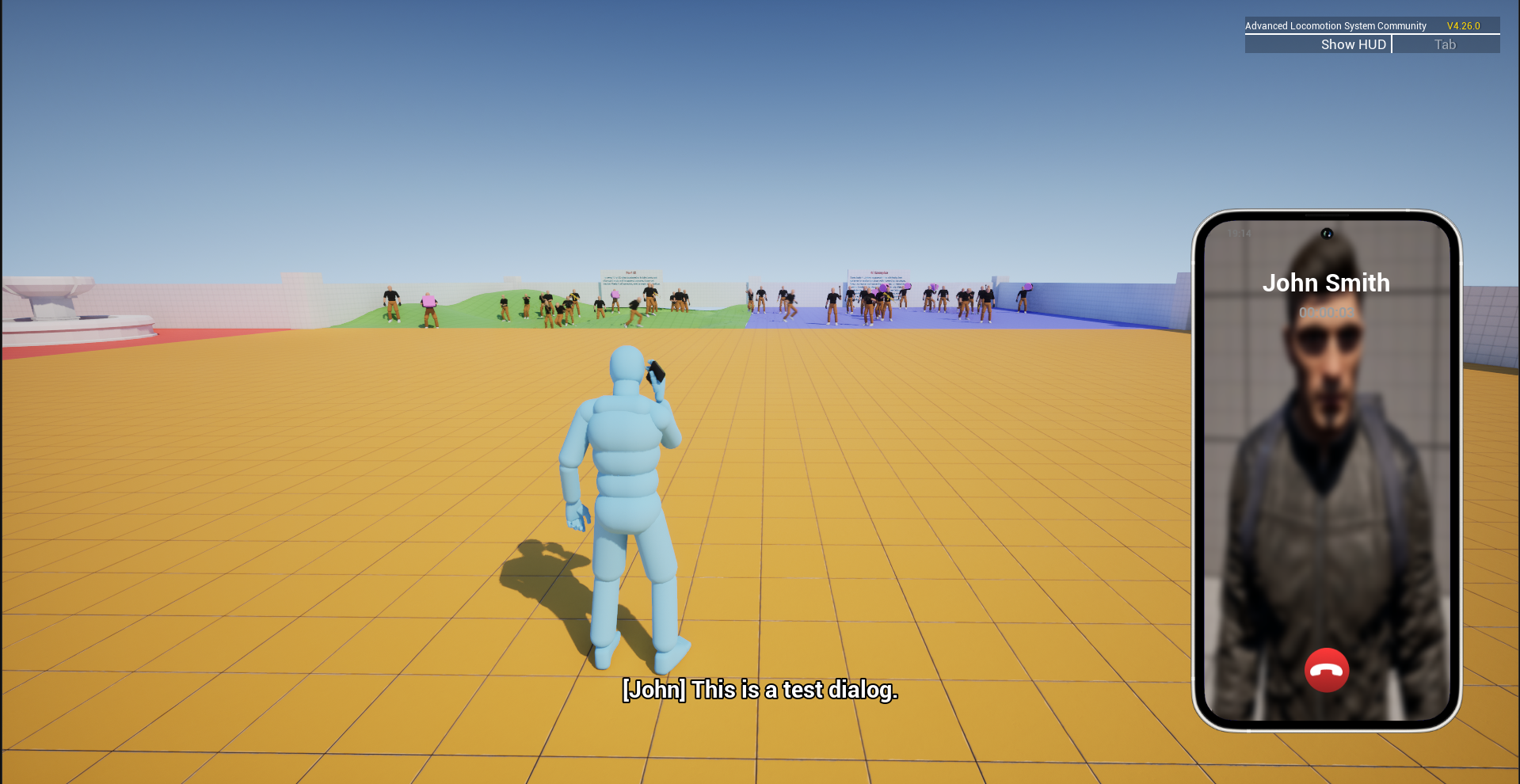
The NPC system is very basic for now but new updates are coming soon. NPCs you add will appear in your contacts by default and you can receive calls from them.
1 Add an NPC to the Phone Component
Go to your Phone Component → NPCS array
Add a new element and fill the fields like a contact: Name, Last Name, Phone Number, Image
2 Trigger an NPC Call
Call the Receive NPC Call event on the Phone Component from your character blueprint (or anywhere else):
Call IDUseful for differentiating calls. This ID is passed as a parameter of the ONNPCDialogEnded event dispatcher so you can run special logic depending on which NPC call just ended
NPC NumberThe phone number of an NPC from your NPCS array
DialogsAn array of dialog structures to manage the conversation with the NPC. Each dialog has:
DialogThe text to display during this dialog
SoundSound that plays during this dialog
DurationTime (in seconds) this dialog will be displayed
If you add 3 dialog items in the array, they will display in order with the duration you set for each.
3 React When a Dialog Ends
Bind to the ONNPCDialogEnded event dispatcher on the Phone Component. The Call ID you set in Receive NPC Call will be passed as a parameter so you can identify which call ended.
✓ That's all for NPCs — you can now add NPC contacts and trigger custom call dialogs.
Result — NPC call in-game
# Add Your Own Songs to the Music App
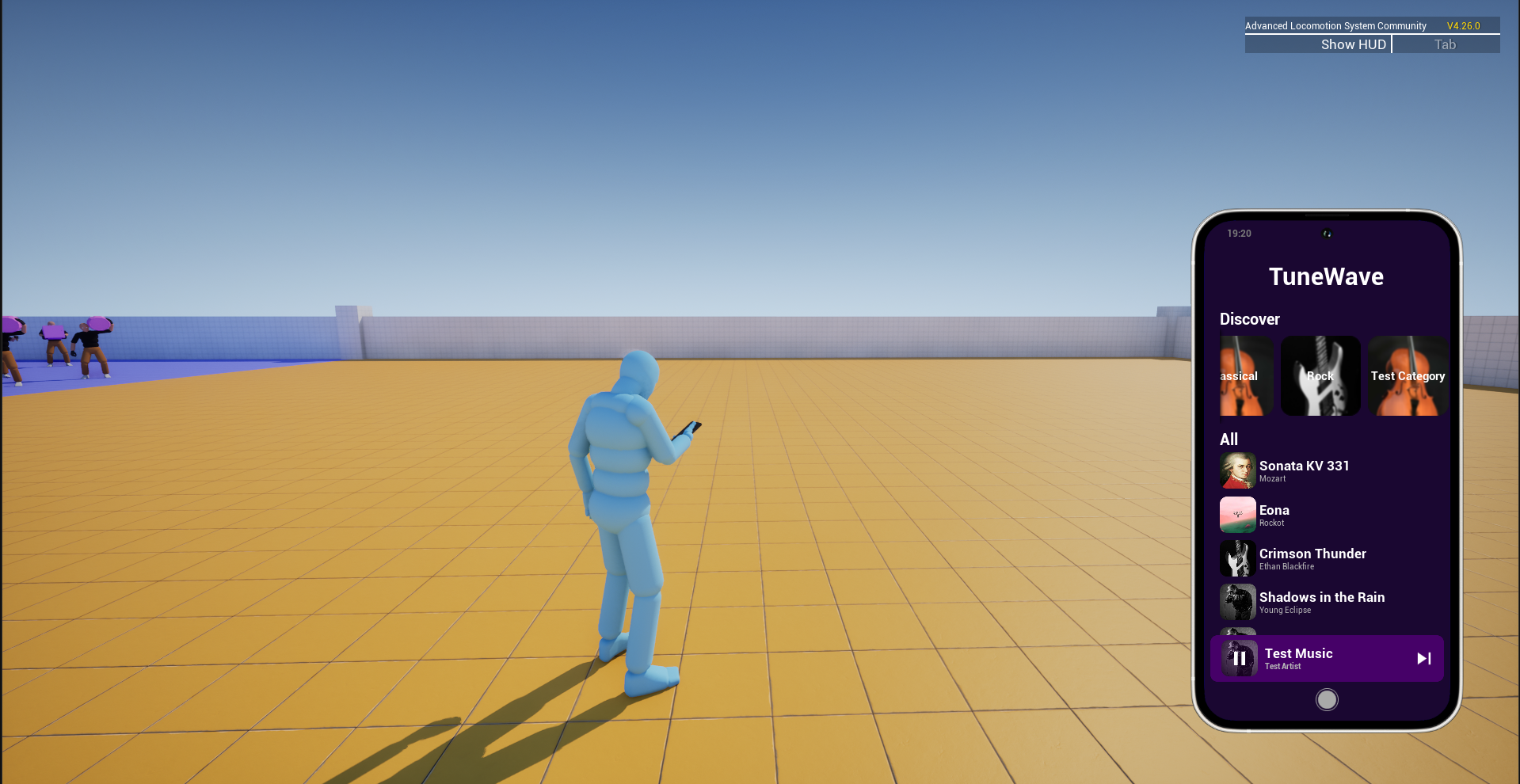
Now it's time to see how to add more songs and categories in the music app.
1 Add Your Own Songs
Navigate to /UMPS/UMPSContent/Blueprints/DataTables
Open DT_Musics and add a new row
Fill in the Name, Artist, Image, Category, and Audio File
2 Add More Categories
Go to /UMPS/UMPSContent/Blueprints/Enumerations and open E_MusicCategory
Add a new enum value
Go back to /UMPS/UMPSContent/Blueprints/DataTables and open DT_MusicCategories
Add a new row — fill the Name, Image, and set Type to the enum value you just created
✓ Your new songs and categories will now appear in the Music app.
Result — new songs and categories in the Music app
# Understand the Bluetooth System
1 Unlock the Bluetooth Speaker
You need to unlock the bluetooth speaker before you can equip it. This is designed for games that want an unlock mechanic.
Skip the unlock: Set Unlocked Bluetooth Speaker to true in your Multiplayer Phone Component
Keep the unlock system: Call Unlock Bluetooth Speaker from the phone component. For example, bind it to OnItemPurchased and check if the item type is bluetooth speaker
The unlocked state is saved automatically.
2 Equip & Drop the Speaker
Call Equip Bluetooth Speaker to equip it (e.g., on pickup or input key) and Drop Bluetooth Speaker to drop it
3 Test It
Launch the game, enable bluetooth in the Settings app, equip the speaker — the bluetooth speaker will connect and all songs played in the Music app will be heard by nearby players.
4 Modify Audio Settings
Open SpeakerAttenuation at /UMPS/UMPSContent/Blueprints to modify attenuation settings
Adjust BluetoothRange directly in the phone component for detection distance
✓ Your bluetooth speaker system is now ready to use.
# Other Customizations
⚙ Change the Toggle Key
Open your Phone Component → go to the graph → Show/Hide Phone Graph
Look for the comment "Show & hide phone with key" — the default key is F. Change it to your own input system
⚙ Change Phone Size & Position
Navigate to /UMPS/UMPSContent/Blueprints/Widgets and open W_PhoneScreen
Adjust the Scale Box → IUser specified scale to resize the phone, and move the widget freely in the Canvas Panel to reposition it
⚙ Useful Client Events
Call these events on the phone component to interact with players:
CLIENT_ReceiveMessageParameters: String Sender Number, Text Message — Send a message to a player. Useful for news, events, or NPC messages
CLIENT_ReceiveMailParameters: String Sender, Text Title, Text Content — Send a mail to a player. Useful for in-game events like in GTA
CLIENT_ReceiveMoneyParameters: String SenderNumber, Float Amount — Send money to a player
⚙ Useful Bindable Events
The Phone Component exposes event dispatchers you can bind to in your own blueprints:
ONNPCDialogEndedFires when an NPC dialog ends. Provides the Call ID so you can identify which NPC call just finished and run custom logic
OnItemPurchasedFires when a player purchases an item from a marketplace. Returns ItemInfo and WebsiteInfo. Use it to track purchases, grant items, or spawn actors
How to Bind: In any blueprint that has a reference to the Phone Component, right-click the component reference and you will see the event dispatchers listed. Select the one you want and create a custom event node to handle it. You can also explore all available dispatchers directly in the BPC_Phone blueprint's Event Dispatchers list.